The build configuration file is the value of a series of configuration items that can be used to set or override Maven build defaults.
Using the build configuration file, you can customize the build method for different environments, such as production (Production) and development (Development) environments.
Configuration files are specified using activeProfiles or profiles elements in the pom.xml file and can be triggered in a variety of ways. The configuration file modifies the POM at build time and is used to set parameters to different target environments (for example, addresses of database servers in development (Development), test (Testing), and production (Production) environments). There are generally three types of build configuration files: Types Where is it defined? Project level (Per Project) 定义在项目的POM文件pom.xml中 User level (Per User) Defined in the settings xml file of Maven (% USER_HOME%/.m2/settings.xml) Global (Global) Defined in the Maven global settings xml file (% M2_HOME%/conf/settings.xml) Maven’s build configuration file can be activated in a number of ways. Use the command console to enter explicit activation. Set through maven. Based on environment variables (user or system variables). Operating system settings (for example, Windows series). The existence or absence of a file. Assume that the project structure is as follows: There are three test files under the src/main/resources folder: File name Description env.properties If you do not specify a configuration file, the configuration to use by default. env.test.properties The test configuration when the test profile is used. env.prod.properties The production configuration when the production profile is used. 注意: These three configuration files do not represent the functions of the build configuration file, but are used for the purpose of this test; for example, when I specify that the build configuration file is prod, the project uses the env.prod.properties file. 注意: The following example still uses the AntRun plug-in because it binds the Maven lifecycle phase and outputs information, copies files, and so on without writing a bit of code through Ant tags. The rest has nothing to do with this build profile. Profile allows us to define a series of configuration information and then specify its activation conditions. In this way, we can define multiple profile, and then each profile corresponds to different activation conditions and configuration information, thus achieving the effect that different environments use different configuration information. In the following example, we add the maven-antrun-plugin:run target to the test phase. This allows us to output text information in different profile. We will use pom.xml to define different profile and use the maven command to activate profile in the command console. The pom.xml file is as follows: 注意:构建配置文件 The use of <profiles> Node. 说明: There are three new ones on it. <profiles> , of which <id> Distinguish between different <profiles> Perform different AntRun tasks; while the task of AntRun can be understood this way, AntRun listens on the Maven lifecycle phase of test, and when Maven executes test, it triggers the AntRun task, which outputs the text and copies the file to the specified location; as for which AntRun task to execute, 构建配置文件 It plays the role of transmitting the specified, for example, by entering the specified <id> . Execute the command: Tip: the first test is the Maven lifecycle phase, and the second test is 构建配置文件 The specified < id > parameter, which is transmitted by-P, of course, it can be prod or normal, which you define. <id> . The result of the operation is as follows: You can see that the task of AntRun was successfully triggered. And it’s corresponding. 构建配置文件 The < id > under is the task of test. Test the remaining two commands, and the results are as follows: open %USER_HOME%/.m2 Under the directory settings.xml Files, where %USER_HOME% Represents the user’s home directory. If the setting.xml file does not exist, copy it directly. %M2_HOME%/conf/settings.xml To the .m2 directory, where %M2_HOME% Represents the installation directory for Maven. Configure setting.xml files, adding Execute the command: 提示 1: At this point, there is no need to use-Ptest to enter parameters, the < activeprofile > of the above setting.xml file has specified the test parameter instead. 提示 2: It can also be used in the %M2_HOME%/conf/settings.xml The file is configured with the same effect. Execution result: First, remove all the setting.xml values tested in the previous step. Then in pom.xml, < id > is the < profile > node of test, and add the < activation > node: Execute the command: 提示 1: Above, use-D to pass the environment variable, where env corresponds to the < name > value just set, and test corresponds to < value >. 提示 2: The environment variable of the system is tested on Windows 10, but it does not take effect, so it can only be passed through-D. Execution result: The activation element contains the following operating system information. When the system is windows XP, test Profile will be triggered. Now open the command console, jump to the directory where pom.xml is located, and execute the following mvn command. Do not use the-P option to specify the name of the Profile. Maven displays the results of the activated test Profile. Now use the activation element to contain the following operating system information. When target/generated-sources/axistools/wsdl2java/com/companyname/group is missing, test Profile will be triggered. Now open the command console, jump to the directory where pom.xml is located, and execute the following mvn command. Do not use the-P option to specify the name of the Profile. Maven displays the results of the activated test Profile. 11.5.1. Type of build profile 
11.5.2. Profile Activation 
11.5.3. Profile Activation instance 
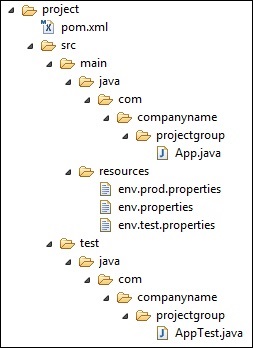
11.5.4. 1. Profile activation 
<projectxmlns="http://maven.apache.org/POM/4.0.0"xmlns:xsi="http://www.w3.org/2001/XMLSchema-instance"xsi:schemaLocation="http://maven.apache.org/POM/4.0.0
http://maven.apache.org/maven-v4_0_0.xsd"><modelVersion>4.0.0</modelVersion><groupId>com.jsoft.test</groupId><artifactId>testproject</artifactId><packaging>jar</packaging><version>0.1-SNAPSHOT</version><name>testproject</name><url>http://maven.apache.org</url><dependencies><dependency><groupId>junit</groupId><artifactId>junit</artifactId><version>3.8.1</version><scope>test</scope></dependency></dependencies><profiles><profile><id>test</id><build><plugins><plugin><groupId>org.apache.maven.plugins</groupId><artifactId>maven-antrun-plugin</artifactId><version>1.8</version><executions><execution><phase>test</phase><goals><goal>run</goal></goals><configuration><tasks><echo>Using
env.test.properties</echo><copyfile="src/main/resources/env.test.properties"tofile="${project.build.outputDirectory}/env.properties"overwrite="true"/></tasks></configuration></execution></executions></plugin></plugins></build></profile><profile><id>normal</id><build><plugins><plugin><groupId>org.apache.maven.plugins</groupId><artifactId>maven-antrun-plugin</artifactId><version>1.8</version><executions><execution><phase>test</phase><goals><goal>run</goal></goals><configuration><tasks><echo>Using
env.properties</echo><copyfile="src/main/resources/env.properties"tofile="${project.build.outputDirectory}/env.properties"overwrite="true"/></tasks></configuration></execution></executions></plugin></plugins></build></profile><profile><id>prod</id><build><plugins><plugin><groupId>org.apache.maven.plugins</groupId><artifactId>maven-antrun-plugin</artifactId><version>1.8</version><executions><execution><phase>test</phase><goals><goal>run</goal></goals><configuration><tasks><echo>Using
env.prod.properties</echo><copyfile="src/main/resources/env.prod.properties"tofile="${project.build.outputDirectory}/env.properties"overwrite="true"/></tasks></configuration></execution></executions></plugin></plugins></build></profile></profiles></project>
mvn test -Ptest


11.5.5. 2. Activate the configuration file through Maven settings 
<activeProfiles>属性:
<settingsxmlns="http://maven.apache.org/POM/4.0.0"xmlns:xsi="http://www.w3.org/2001/XMLSchema-instance"xsi:schemaLocation="http://maven.apache.org/POM/4.0.0
http://maven.apache.org/xsd/settings-1.0.0.xsd">...<activeProfiles><activeProfile>test</activeProfile></activeProfiles></settings>
mvn test

11.5.6. 3. Activate the configuration file through the environment variable 
<projectxmlns="http://maven.apache.org/POM/4.0.0"xmlns:xsi="http://www.w3.org/2001/XMLSchema-instance"xsi:schemaLocation="http://maven.apache.org/POM/4.0.0
http://maven.apache.org/maven-v4_0_0.xsd"><modelVersion>4.0.0</modelVersion><groupId>com.jsoft.test</groupId><artifactId>testproject</artifactId><packaging>jar</packaging><version>0.1-SNAPSHOT</version><name>testproject</name><url>http://maven.apache.org</url><dependencies><dependency><groupId>junit</groupId><artifactId>junit</artifactId><version>3.8.1</version><scope>test</scope></dependency></dependencies><profiles><profile><id>test</id><activation><property><name>env</name><value>test</value></property></activation><build><plugins><plugin><groupId>org.apache.maven.plugins</groupId><artifactId>maven-antrun-plugin</artifactId><version>1.8</version><executions><execution><phase>test</phase><goals><goal>run</goal></goals><configuration><tasks><echo>Using
env.test.properties</echo><copyfile="src/main/resources/env.test.properties"tofile="${project.build.outputDirectory}/env.properties"overwrite="true"/></tasks></configuration></execution></executions></plugin></plugins></build></profile><profile><id>normal</id><build><plugins><plugin><groupId>org.apache.maven.plugins</groupId><artifactId>maven-antrun-plugin</artifactId><version>1.8</version><executions><execution><phase>test</phase><goals><goal>run</goal></goals><configuration><tasks><echo>Using
env.properties</echo><copyfile="src/main/resources/env.properties"tofile="${project.build.outputDirectory}/env.properties"overwrite="true"/></tasks></configuration></execution></executions></plugin></plugins></build></profile><profile><id>prod</id><build><plugins><plugin><groupId>org.apache.maven.plugins</groupId><artifactId>maven-antrun-plugin</artifactId><version>1.8</version><executions><execution><phase>test</phase><goals><goal>run</goal></goals><configuration><tasks><echo>Using
env.prod.properties</echo><copyfile="src/main/resources/env.prod.properties"tofile="${project.build.outputDirectory}/env.properties"overwrite="true"/></tasks></configuration></execution></executions></plugin></plugins></build></profile></profiles></project>
mvn test -Denv=test

11.5.7. 4. Activate the configuration file through the operating system 
<profile><id>test</id><activation><os><name>Windows
XP</name><family>Windows</family><arch>x86</arch><version>5.1.2600</version></os></activation></profile>
mvn test
11.5.8. 5. Activate the configuration file through the existence or absence of the file 
<profile><id>test</id><activation><file><missing>target/generated-sources/axistools/wsdl2java/
com/companyname/group</missing></file></activation></profile>
mvn test