9.37.1. Brief introduction 
In-application purchases are used by the application to purchase additional content or upgrade features.
9.37.2. Instance step 
1.在 iTunes 连接中请确保拥有一个唯一的 App ID(unique App ID ),当创建捆绑的ID( bundle ID)应用程序更新时,代码会以相应的配置文件签名在Xcode上
two。 Create new applications and update application information. You can learn more about it in Apple’s add new application documentation.
3.在应用程序页的管理应用程序( Manage In-App Purchase)中,为app内付费添加新产品
4.确保设置的应用程序为的银行详细。需要将其设置为在应用程序内购买(In-App purchase)。此外在 iTunes 中使用管理用户(Manage Users)选项,创建一个测试用户帐户连接您的应用程序的页。
5.下一步是与处理代码和为我们在应用程序内购买创建有关的 UI。
6.创建一个单一的视图应用程序,并在 iTunes 中指定的标识符连接输入捆绑标识符
7.更新ViewController.xib ,如下所示
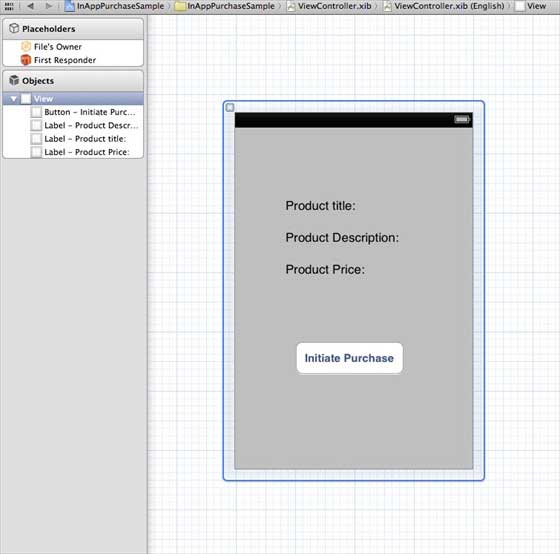
8.为三个标签创建IBOutlets,且将按钮分别命名为 productTitleLabel、 productDescriptionLabel、 productPriceLabel 和 purchaseButton
9.选择项目文件,然后选择目标,然后添加StoreKit.framework
10.更新ViewController.h ,如下所示
#import <UIKit/UIKit.h>
#import <StoreKit/StoreKit.h>

@interface ViewController : UIViewController<
SKProductsRequestDelegate,SKPaymentTransactionObserver>
{
    SKProductsRequest *productsRequest;
    NSArray *validProducts;
    UIActivityIndicatorView *activityIndicatorView;
    IBOutlet UILabel *productTitleLabel;
    IBOutlet UILabel *productDescriptionLabel;
    IBOutlet UILabel *productPriceLabel;
    IBOutlet UIButton *purchaseButton;
}
- (void)fetchAvailableProducts;
- (BOOL)canMakePurchases;
- (void)purchaseMyProduct:(SKProduct*)product;
- (IBAction)purchase:(id)sender;

@end
11.更新ViewController.m ,如下所示
#import "ViewController.h"
#define kTutorialPointProductID
@"com.tutorialPoints.testApp.testProduct"

@interface ViewController ()

@end

@implementation ViewController

- (void)viewDidLoad
{
    [super viewDidLoad];
    // Adding activity indicator
    activityIndicatorView = [[UIActivityIndicatorView alloc]
    initWithActivityIndicatorStyle:UIActivityIndicatorViewStyleWhiteLarge];
    activityIndicatorView.center = self.view.center;
    [activityIndicatorView hidesWhenStopped];
    [self.view addSubview:activityIndicatorView];
    [activityIndicatorView startAnimating];
    //Hide purchase button initially
    purchaseButton.hidden = YES;
    [self fetchAvailableProducts];
}

- (void)didReceiveMemoryWarning
{
    [super didReceiveMemoryWarning];
    // Dispose of any resources that can be recreated.
}

-(void)fetchAvailableProducts{
    NSSet *productIdentifiers = [NSSet
    setWithObjects:kTutorialPointProductID,nil];
    productsRequest = [[SKProductsRequest alloc]
    initWithProductIdentifiers:productIdentifiers];
    productsRequest.delegate = self;
    [productsRequest start];
}

- (BOOL)canMakePurchases
{
    return [SKPaymentQueue canMakePayments];
}
- (void)purchaseMyProduct:(SKProduct*)product{
    if ([self canMakePurchases]) {
        SKPayment *payment = [SKPayment paymentWithProduct:product];
        [[SKPaymentQueue defaultQueue] addTransactionObserver:self];
        [[SKPaymentQueue defaultQueue] addPayment:payment];
    }
    else{
        UIAlertView *alertView = [[UIAlertView alloc]initWithTitle:
        @"Purchases are disabled in your device" message:nil delegate:
        self cancelButtonTitle:@"Ok" otherButtonTitles: nil];
        [alertView show];
    }
}
-(IBAction)purchase:(id)sender{
    [self purchaseMyProduct:[validProducts objectAtIndex:0]];
    purchaseButton.enabled = NO;
}

#pragma mark StoreKit Delegate

-(void)paymentQueue:(SKPaymentQueue *)queue
 updatedTransactions:(NSArray *)transactions {
    for (SKPaymentTransaction *transaction in transactions) {
        switch (transaction.transactionState) {
            case SKPaymentTransactionStatePurchasing:
                    NSLog(@"Purchasing");
                break;
            case SKPaymentTransactionStatePurchased:
               if ([transaction.payment.productIdentifier
                  isEqualToString:kTutorialPointProductID]) {
                   NSLog(@"Purchased ");
                   UIAlertView *alertView = [[UIAlertView alloc]initWithTitle:
                   @"Purchase is completed succesfully" message:nil delegate:
                   self cancelButtonTitle:@"Ok" otherButtonTitles: nil];
                   [alertView show];
                }
                [[SKPaymentQueue defaultQueue] finishTransaction:transaction];
                break;
            case SKPaymentTransactionStateRestored:
                NSLog(@"Restored ");
                [[SKPaymentQueue defaultQueue] finishTransaction:transaction];
                break;
            case SKPaymentTransactionStateFailed:
                NSLog(@"Purchase failed ");
                break;
            default:
                break;
        }
    }
}

-(void)productsRequest:(SKProductsRequest *)request
 didReceiveResponse:(SKProductsResponse *)response
{
    SKProduct *validProduct = nil;
    int count = [response.products count];
    if (count>0) {
        validProducts = response.products;
        validProduct = [response.products objectAtIndex:0];
        if ([validProduct.productIdentifier
           isEqualToString:kTutorialPointProductID]) {
            [productTitleLabel setText:[NSString stringWithFormat:
            @"Product Title: %@",validProduct.localizedTitle]];
            [productDescriptionLabel setText:[NSString stringWithFormat:
            @"Product Desc: %@",validProduct.localizedDescription]];
            [productPriceLabel setText:[NSString stringWithFormat:
            @"Product Price: %@",validProduct.price]];
        }
    } else {
        UIAlertView *tmp = [[UIAlertView alloc]
                            initWithTitle:@"Not Available"
                            message:@"No products to purchase"
                            delegate:self
                            cancelButtonTitle:nil
                            otherButtonTitles:@"Ok", nil];
        [tmp show];
    }
    [activityIndicatorView stopAnimating];
    purchaseButton.hidden = NO;
}

@end
注意: You need to modify the kTutorialPointProductID in which you created In-App Pur (purchased in app). You can add multiple products by modifying the NSSet of the fetchAvailableProducts product identifier.
9.37.3. Output 
Run the application, and the output is as follows
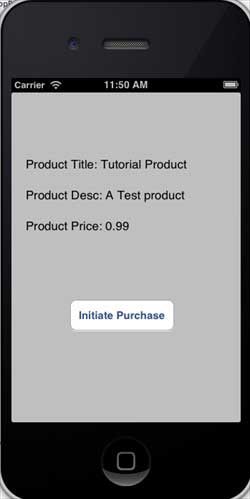
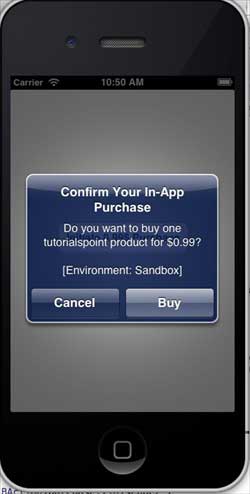
Make sure you are logged in. Click Buy to select an existing Apple ID. Enter a valid user name and password for the test account. After a few seconds, the following information is displayed
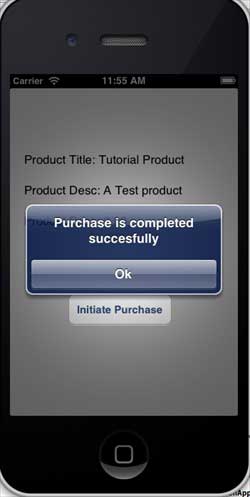
Once the product is purchased successfully, the following information will be obtained. You can update the code related to the application function where this information is displayed