The activity represents a single screen with a user interface, such as a Java window or frame. Android’s activities are
ContextThemeWrapper
A subclass of the.
If you have ever programmed in the CJR Cobb + or Java language, you should know that these programs are derived from
main()
The function begins. Similarly, the Android system initializes its program through the active
onCreate()
The call to the callback starts. There is a sequence of callback methods to start an activity and a sequence of methods to close the activity, as shown in the following activity declaration cycle diagram:
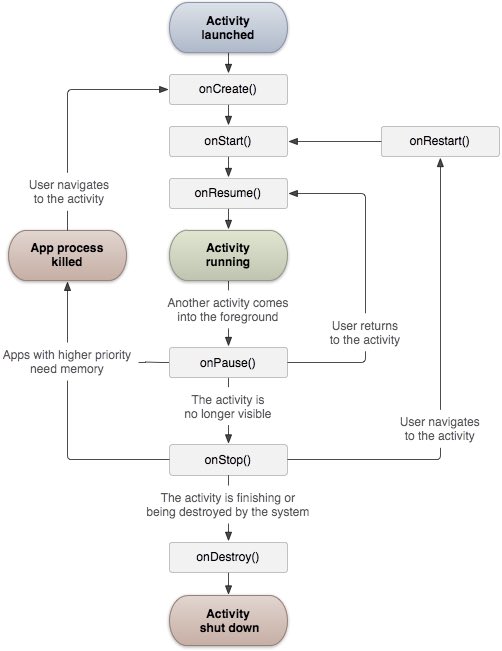
The Activity class defines the following callback. You don’t have to implement all callback methods. But it’s important to understand each of them, and implementing them ensures that your application behaves as users expect.
Callback | Description |
|---|---|
| This is the first callback, which is called when the activity is first created |
| This callback is called when the activity is visible to the user |
| This callback is called when the application begins to interact with the user |
| The suspended activity cannot accept user input and cannot execute any code. The current activity is about to be paused and called when the last activity is about to be resumed |
| Called when the activity is not visible |
| Called before the activity is destroyed by the system |
| Called when the activity is stopped and reopened |
3.10.1. Example 
This example shows the lifecycle of Android application activities in simple steps. Follow the steps below to modify the Android application we created in the Hello World instance section.
Steps | Description |
|---|---|
1 | Use eclipse IDE to create an Android application and name it HelloWorld and put it under the com.example.helloworld package. As described in the previous Hello World Example chapter. |
2 | 按照下面修改主要活动文件MainActivity.java。保持其他部分不变。 |
3 | Run the application to open the Android emulator and check for changes to the application. |
Here are the main active files
src/com.example.helloworld/MainActivity.java
The content of the modification. It contains every basic lifecycle approach.
Log.d()
Method is used to generate log information:
package com.example.helloworld;

import android.os.Bundle;
import android.app.Activity;
import android.util.Log;

public class MainActivity extends Activity {
   String msg = "Android : ";

   /** 当活动第一次被创建时调用 */
   @Override
   public void onCreate(Bundle savedInstanceState) {
      super.onCreate(savedInstanceState);
      setContentView(R.layout.activity_main);
      Log.d(msg, "The onCreate() event");
   }

   /** 当活动即将可见时调用 */
   @Override
   protected void onStart() {
      super.onStart();
      Log.d(msg, "The onStart() event");
   }

   /** 当活动可见时调用 */
   @Override
   protected void onResume() {
      super.onResume();
      Log.d(msg, "The onResume() event");
   }

   /** 当其他活动获得焦点时调用 */
   @Override
   protected void onPause() {
      super.onPause();
      Log.d(msg, "The onPause() event");
   }

   /** 当活动不再可见时调用 */
   @Override
   protected void onStop() {
      super.onStop();
      Log.d(msg, "The onStop() event");
   }

   /** 当活动将被销毁时调用 */
   @Override
   public void onDestroy() {
      super.onDestroy();
      Log.d(msg, "The onDestroy() event");
   }
}
Activity classes are derived from the project’s
res/layout
The XML file in the loads all UI components. The following statement starts from the
res/layout/activity_main.xml
Load the UI component in the file:
setContentView(R.layout.activity_main);
An application can have one or more activities without any restrictions. Each activity defined for the application needs to be specified in the
AndroidManifest.xml
Declare in. The main activities of the application need to be declared in the list, and the intention filter tag needs to include
MAIN
Action and
LAUNCHER
Category. As follows:
<manifest xmlns:android="http://schemas.android.com/apk/res/android"
   package="com.example.helloworld"
   android:versionCode="1"
   android:versionName="1.0" >

   <uses-sdk
      android:minSdkVersion="8"
      android:targetSdkVersion="22" />

   <application
       android:icon="@drawable/ic_launcher"
       android:label="@string/app_name"
       android:theme="@style/AppTheme" >

       <activity
          android:name=".MainActivity"
          android:label="@string/title_activity_main" >

          <intent-filter>
             <action android:name="android.intent.action.MAIN" />
             <category android:name="android.intent.category.LAUNCHER"/>
          </intent-filter>

       </activity>

   </application>
</manifest>
Whether it is
MAIN
The action is still
LAUNCHER
If the category is not declared in the activity, the application icon will not appear in the application list on the home screen.
Let’s run the modified “Hellow World!” Applications. Suppose you have already created AVD when the environment is set up. Run the application from Eclipse, open the active file in a project, and click the run icon from the toolbar. Eclipse installs the application on AVD and starts it. If all goes well, the simulator screen will be displayed as follows, and you can see the log message in the LogCat window of Eclipse IDE:
07-19 15:00:43.405: D/Android :(866): The onCreate() event
07-19 15:00:43.405: D/Android :(866): The onStart() event
07-19 15:00:43.415: D/Android :(866): The onResume() event
Let’s click the red button on the Android simulator, which will produce the following event message in the LogCat window of Eclipse IDE:
<code>07-19 15:01:10.995: D/Android :(866): The onPause() event
07-19 15:01:12.705: D/Android :(866): The onStop() event
</code>
Let’s click the menu button on the Android simulator again, which will produce the following event message in the LogCat window of Eclipse IDE:
<code>07-19 15:01:13.995: D/Android :(866): The onStart() event
07-19 15:01:14.705: D/Android :(866): The onResume() event
</code>
Next, let’s click the back button on the Android simulator, which will generate the following event message in the LogCat window of Eclipse IDE, which completes the entire life cycle of the activity on the Android application.
07-19 15:33:15.687: D/Android :(992): The onPause() event
07-19 15:33:15.525: D/Android :(992): The onStop() event
07-19 15:33:15.525: D/Android :(992): The onDestroy() event