The type of keyboard input helps us get the necessary input from the user.
It removes unwanted keys and includes the required parts. Users can set the type of input by using the keyboard properties of UITextField.
For example: text field (textField). KeyboardType = UIKeyboardTypeDefault
Keyboard input type
Type of input | Description |
|---|---|
UIKeyboardTypeASCIICapable | The keyboard includes all standard ASCII? Characters. |
UIKeyboardTypeNumbersAndPunctuation | The keyboard displays numbers and punctuation. |
UIKeyboardTypeURL | Keyboard? URL? Item optimization. |
UIKeyboardTypeNumberPad | The keyboard is used for PIN? Enter and display a numeric keypad. |
UIKeyboardTypePhonePad | The keypad optimizes the input phone number. |
UIKeyboardTypeNamePhonePad | The keyboard is used to enter a name or phone number. |
UIKeyboardTypeEmailAddress | The keyboard optimizes the input email address. |
UIKeyboardTypeDecimalPad | The keyboard is used to enter decimal numbers. |
UIKeyboardTypeTwitter | Keyboard pair? twitter @? And? The symbol is optimized. |
9.10.1. Add a custom method addTextFieldWithDifferentKeyboard 
-(void) addTextFieldWithDifferentKeyboard{

   UITextField *textField1= [[UITextField alloc]initWithFrame:
   CGRectMake(20, 50, 280, 30)];
   textField1.delegate = self;
   textField1.borderStyle = UITextBorderStyleRoundedRect;
   textField1.placeholder = @"Default Keyboard";
   [self.view addSubview:textField1];

   UITextField *textField2 = [[UITextField alloc]initWithFrame:
   CGRectMake(20, 100, 280, 30)];
   textField2.delegate = self;
   textField2.borderStyle = UITextBorderStyleRoundedRect;
   textField2.keyboardType = UIKeyboardTypeASCIICapable;
   textField2.placeholder = @"ASCII keyboard";
   [self.view addSubview:textField2];

   UITextField *textField3 = [[UITextField alloc]initWithFrame:
   CGRectMake(20, 150, 280, 30)];
   textField3.delegate = self;
   textField3.borderStyle = UITextBorderStyleRoundedRect;
   textField3.keyboardType = UIKeyboardTypePhonePad;
   textField3.placeholder = @"Phone pad keyboard";
   [self.view addSubview:textField3];

   UITextField *textField4 = [[UITextField alloc]initWithFrame:
   CGRectMake(20, 200, 280, 30)];
   textField4.delegate = self;
   textField4.borderStyle = UITextBorderStyleRoundedRect;
   textField4.keyboardType = UIKeyboardTypeDecimalPad;
   textField4.placeholder = @"Decimal pad keyboard";
   [self.view addSubview:textField4];

   UITextField *textField5= [[UITextField alloc]initWithFrame:
   CGRectMake(20, 250, 280, 30)];
   textField5.delegate = self;
   textField5.borderStyle = UITextBorderStyleRoundedRect;
   textField5.keyboardType = UIKeyboardTypeEmailAddress;
   textField5.placeholder = @"Email keyboard";
   [self.view addSubview:textField5];

   UITextField *textField6= [[UITextField alloc]initWithFrame:
   CGRectMake(20, 300, 280, 30)];
   textField6.delegate = self;
   textField6.borderStyle = UITextBorderStyleRoundedRect;
   textField6.keyboardType = UIKeyboardTypeURL;
   textField6.placeholder = @"URL keyboard";
   [self.view addSubview:textField6];
}
Update viewDidLoad in ViewController.m, as shown below
(void)viewDidLoad
{
   [super viewDidLoad];
   //The custom method to create textfield with different keyboard input
   [self addTextFieldWithDifferentKeyboard];
   //Do any additional setup after loading the view, typically from a nib
}
Output 
Now when we run the application, we get the following output:
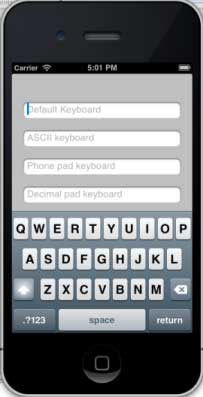
Select different text areas and we will see different keyboards.