Docker allows you to run applications within a container, using the docker run Command to run an application within the container.
Output Hello world
runoob@runoob:~$ docker run ubuntu:15.10 /bin/echo "Hello world"
Hello world

Each parameter is resolved:
docker: The binary execution file for Docker.
run: Combine with the previous docker to run a container.
ubuntu:15.10 Specify the image to run. Docker first looks up whether the image exists on the local host. If it does not exist, Docker downloads the public image from the image repository Docker Hub.
/bin/echo “Hello world”: Commands executed in the startup container
The complete meaning of the above command can be interpreted as: Docker creates a new container in the ubuntu15.10 image, then executes bin/echo “Hello world” in the container, and then outputs the result. We let the container that docker runs implement through the two parameters of docker-I-t. “对话” Ability to: Each parameter is resolved: -t: Specify a pseudo terminal or terminal in the new container. -i: Allows you to interact with standard input (STDIN) within the container. Notice the second line root @ 0123ce188bd8 :/#, at this point we have entered a container for the ubuntu15.10 system We try to run the command in the container cat /proc/version And ls View the version information of the current system and the list of files in the current directory respectively We can exit the container by running the exit command or by using CTRL+D. Notice in the third line that root @ runoob :~# indicates that we have exited the current container and returned to the current host. Use the following command to create a container that runs as a process In the output, we do not see the expected “hello world”, but a string of long characters 2b1b7a428627c51ab8810d541d759f072b4fc75487eed05812646b8534a2fe63 这个长字符串叫做容器 ID,对每个容器来说都是唯一的,我们可以通过容器 ID 来查看对应的容器发生了什么。 First, we need to make sure that the container is running and can be accessed through the docker ps To see: Description of output details: CONTAINER ID: Container ID. IMAGE: The mirror image used. COMMAND: The command that runs when the container is started. CREATED: The time when the container was created. STATUS: Container status. There are 7 states: Created (created) Restarting (restarting) Running or Up (running) Removing (migrating) Paused (pause) Exited (stop) Dead (death) PORTS: The port information of the container and the connection type used (tcpudp). NAMES: The container name that is automatically assigned. Use the docker logs command within the host host to view the standard output within the container: We use docker stop Command to stop the container: Through the docker ps view, the container has stopped working: You can see that the container is gone. You can also stop it with the following command: 2.9.1. Run an interactive container 
runoob@runoob:~$ docker run -i -t ubuntu:15.10 /bin/bash
root@0123ce188bd8:/#
root@0123ce188bd8:/#  cat /proc/version
Linux version 4.4.0-151-generic (buildd@lgw01-amd64-043) (gcc version 5.4.0 20160609 (Ubuntu 5.4.0-6ubuntu1~16.04.10) ) #178-Ubuntu SMP Tue Jun 11 08:30:22 UTC 2019
root@0123ce188bd8:/# ls
bin  boot  dev  etc  home  lib  lib64  media  mnt  opt  proc  root  run  sbin  srv  sys  tmp  usr  var
root@0123ce188bd8:/#
root@0123ce188bd8:/#  exit
exit
root@runoob:~#
2.9.2. Start the container (background mode) 
runoob@runoob:~$ docker run -d ubuntu:15.10 /bin/sh -c "while true; do echo hello world; sleep 1; done"
2b1b7a428627c51ab8810d541d759f072b4fc75487eed05812646b8534a2fe63
runoob@runoob:~$ docker ps
CONTAINER ID        IMAGE                  COMMAND              ...
5917eac21c36        ubuntu:15.10           "/bin/sh -c 'while t…"    ...
runoob@runoob:~$ docker logs 2b1b7a428627
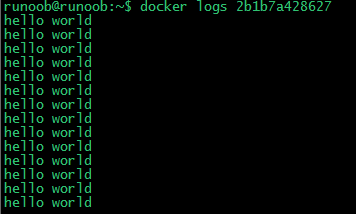
runoob@runoob:~$ docker logs amazing_cori
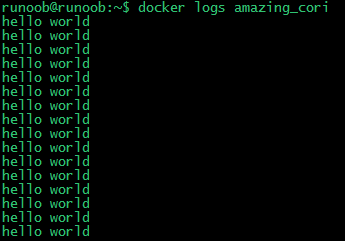
2.9.3. Stop the container 

runoob@runoob:~$ docker ps
runoob@runoob:~$ docker stop amazing_cori