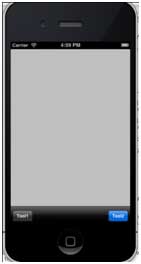
We can use the toolbar to modify the view elements.
For example, there are deletions, shares, replies, and so on, in the inbox bar in the mail application. As follows:

Important attribute
BarStyle
Items
9.13.1. Add a custom method addToolbar 
-(void)addToolbar
{
    UIBarButtonItem *spaceItem = [[UIBarButtonItem alloc]
    initWithBarButtonSystemItem:UIBarButtonSystemItemFlexibleSpace
    target:nil action:nil];
    UIBarButtonItem *customItem1 = [[UIBarButtonItem alloc]
    initWithTitle:@"Tool1" style:UIBarButtonItemStyleBordered
    target:self action:@selector(toolBarItem1:)];
    UIBarButtonItem *customItem2 = [[UIBarButtonItem alloc]
    initWithTitle:@"Tool2" style:UIBarButtonItemStyleDone
    target:self action:@selector(toolBarItem2:)];
    NSArray *toolbarItems = [NSArray arrayWithObjects:
    customItem1,spaceItem, customItem2, nil];
    UIToolbar *toolbar = [[UIToolbar alloc]initWithFrame:
    CGRectMake(0, 366+54, 320, 50)];
    [toolbar setBarStyle:UIBarStyleBlackOpaque];
    [self.view addSubview:toolbar];
    [toolbar setItems:toolbarItems];
}
To understand what we are doing, we add UILabel Iboutlet to our ViewController.xib and create an IBoutlet named tag for UILabel.
We also need to add two methods to perform the operation of the toolbar item as follows:
-(IBAction)toolBarItem1:(id)sender{
    [label setText:@"Tool 1 Selected"];
}

-(IBAction)toolBarItem2:(id)sender{
    [label setText:@"Tool 2 Selected"];
}
Update the viewDidLoad in ViewController.m, as follows:
- (void)viewDidLoad
{
    [super viewDidLoad];
    // The method hideStatusbar called after 2 seconds
    [self addToolbar];
    // Do any additional setup after loading the view, typically from a nib.
}
Output 
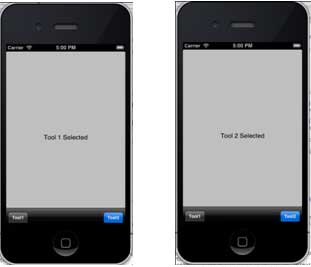
Now when we run the application, we will see the following output.
Click the tool1 and tool2 bar buttons we got