9.40.1. Brief introduction 
Storyboards is only introduced in iOS5, and when we use Storyboards, the deployment target should be iOS5.0 or higher.
Storyboards helps us understand the visual flow of the picture, in the interface for
Create all application screens under MainStoryboard.storyboard. Example step =
1. 创建一个single view application,创建应用程序时选择 storyboard 复选框。
two。 Select MainStoryboard.storyboard, where you can find a single view controller. Add a view controller and update the view controller, as follows
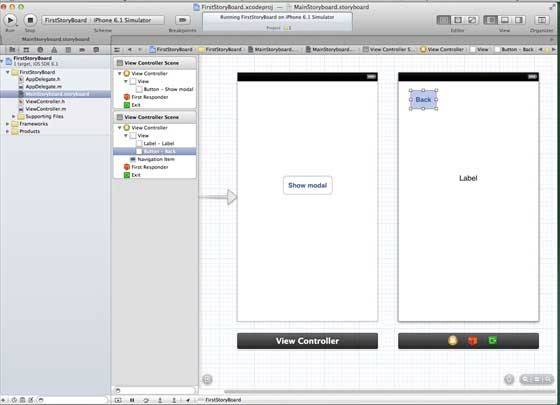
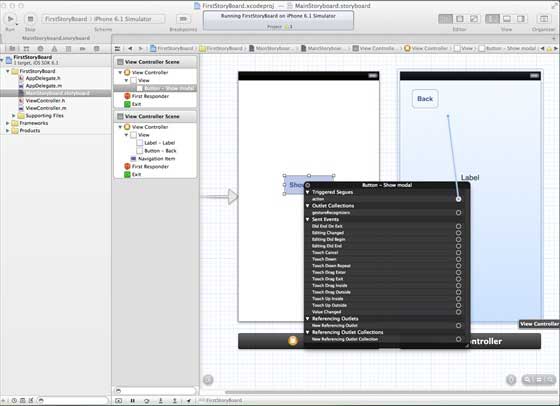
3.连接两个视图控制器。右键单击”show modal(显示模式)”按钮,在左侧视图控制器将其拖动到右视视图控制器中,如下图所示:
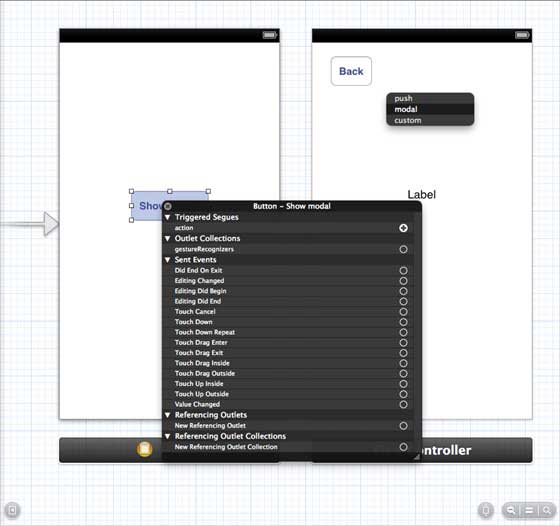
4.现在从如下所示的三个显示选项中选择modal(模态)
5.更新 ViewController.h 如下所示
#import <UIKit/UIKit.h>

@interface ViewController : UIViewController

-(IBAction)done:(UIStoryboardSegue *)seque;

@end
6.更新 ViewController.m 如下所示
#import "ViewController.h"

@interface ViewController ()

@end

@implementation ViewController

- (void)viewDidLoad
{
    [super viewDidLoad];
}

- (void)didReceiveMemoryWarning
{
    [super didReceiveMemoryWarning];
    // Dispose of any resources that can be recreated.
}
-(IBAction)done:(UIStoryboardSegue *)seque{
    [self.navigationController popViewControllerAnimated:YES];
}

@end
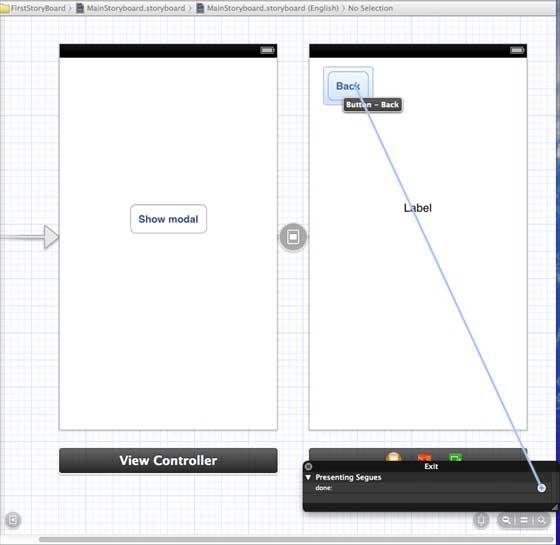
7.选择”MainStoryboard.storyboard”,并右键点击”Exit “按钮,在右侧视图控制器中选择和连接后退按钮,如下图所示
9.40.2. Output 
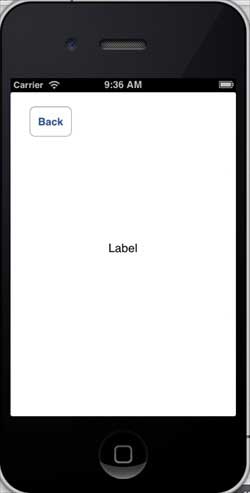
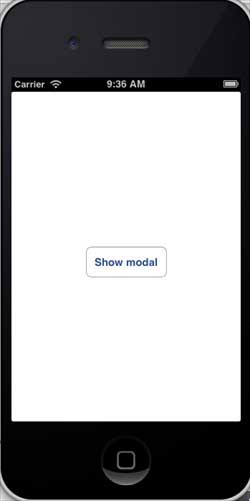
Run the application in the iPhone device and get the following output
Now, select the display mode and you will get the following output