2.7.1. Install using Homebrew 
MacOS We can use Homebrew to install Docker.
Homebrew’s Cask already supports Docker for Mac, so it’s easy to install using Homebrew Cask:
$ brew install --cask --appdir=/Applications docker

==> Creating Caskroom at /usr/local/Caskroom
==> We'll set permissions properly so we won't need sudo in the future
Password:          # 输入 macOS 密码
==> Satisfying dependencies
==> Downloading https://download.docker.com/mac/stable/21090/Docker.dmg
######################################################################## 100.0%
==> Verifying checksum for Cask docker
==> Installing Cask docker
==> Moving App 'Docker.app' to '/Applications/Docker.app'.
🍺  docker was successfully installed!
After loading Docker app, click Next, you may be asked for your macOS login password, you can enter it. After that, a prompt window for Docker to run will pop up, and there will also be a little whale icon on the status bar (  ).
).
2.7.2. Download and install manually 
If you need to download manually, please click the link below to download Install Docker Desktop on Mac .

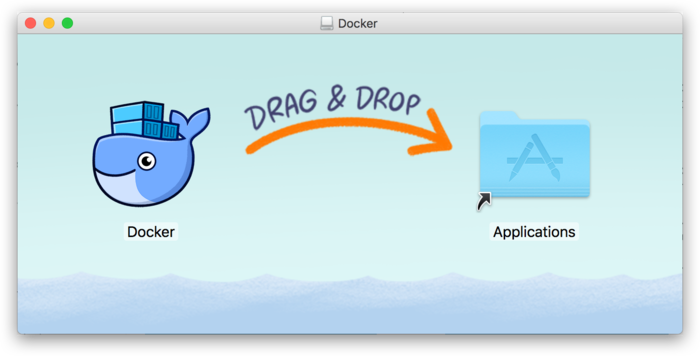
Like other macOS software, installation is easy, double-click the downloaded .dmg file, and then drag the whale icon to the Application folder.
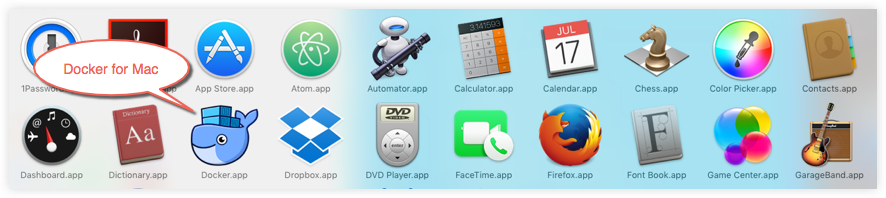
Find the Docker icon in the application and click run. You may ask for the login password of macOS and enter it.
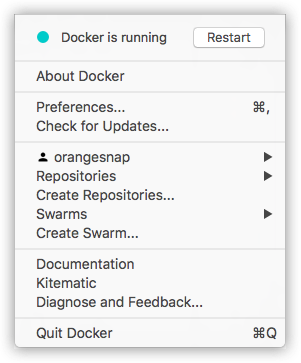
Clicking the whale icon in the top status bar will bring up the action menu.

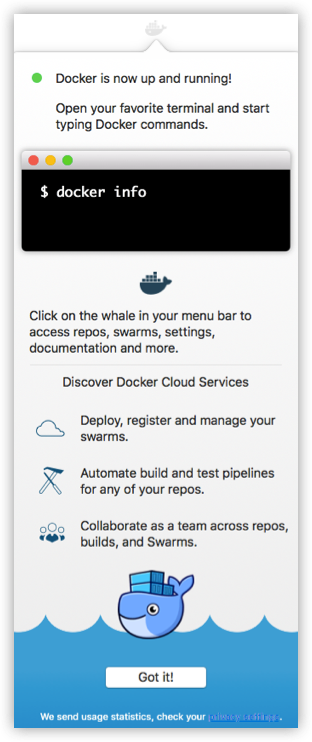
The first time you click on the icon, you may see the successful installation interface, click “Got it!” You can close this window.
After starting the terminal, you can check the installed version of Docker with the command.
$ docker --version
Docker version 17.09.1-ce, build 19e2cf6
2.7.3. Mirror acceleration 
In view of the domestic network problems, it is very slow to pull the Docker image later. We can configure an accelerator to solve it. I use NetEase’s image address: http://hub-mirror.c.163.com .
Click the Docker for mac App icon-> Perferences… in the taskbar After the modification is completed, click the Apply & Restart button, and Docker will restart and apply the configured image address.
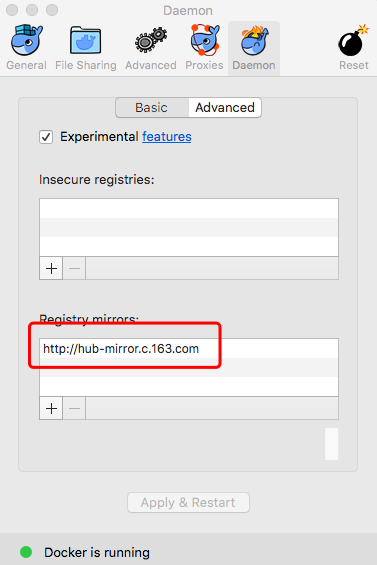
We can then use docker info to see if the configuration is successful.
$ docker info
...
Registry Mirrors:
 http://hub-mirror.c.163.com
Live Restore Enabled: false