Activity and fragment transitions in Lollipop (Android 5. 0) are based on some relatively new Android features called transitions. Introduced in KitKat, the transition framework provides a series of convenient API to provide animation between different UI states of the application. This framework is built around two key concepts: scenarios and transitions. The scenario defines the state given by the application UI, and the transition defines the animation changes between the two scenes.
When a scene changes, the transition has two main responsibilities:
Capture the state of each view in the start and end scene
Create an animator (Animator), based on different views that require animation from one scene to another.
3.17.1. Example 
This example explains how to use fragment transitions to create custom animations. Let’s start with the following steps:
Steps | Description |
|---|---|
1 | Use Android Studio to create an Android application, named Fragment Custom Animation, and package name cn.uprogrammer.fragmentcustomanimation. Exe. |
2 | Modify the res/layout/activity_main.xml file to add a TextView |
3 | Create a layout file for fragment_stack.xml under res/layout/, and define fragment tags and button tags |
4 | Create a subdirectory anim under res/, and add fragment_slide_left.xml, fragment_slide_left_exit.xml, fragment_slide_right_exit.xml and fragment_slide_left_enter.xml |
5 | Add fragment stack, fragment manager and onCreateView () to MainActivity.java |
6 | Start the Android emulator to run the application and verify the results of the application’s changes. |
以下是
res/layout/activity_main.xml
文件的内容,其包含帧布局和按钮。
<?xml version="1.0" encoding="utf-8"?>
<LinearLayout
    xmlns:android="http://schemas.android.com/apk/res/android"
    android:layout_width="match_parent"
    android:layout_height="match_parent"
    android:orientation="vertical" >

    <FrameLayout
        android:id="@+id/fragment1"
        android:layout_width="match_parent"
        android:layout_height="0dp"
        android:layout_weight="1" />

    <Button
        android:id="@+id/new_fragment"
        android:layout_width="wrap_content"
        android:layout_height="wrap_content"
        android:text="添加新碎片" />

</LinearLayout>
The following is the res/anim/fragment_stack.xml file:
<?xml version="1.0" encoding="utf-8"?>
<LinearLayout xmlns:android="http://schemas.android.com/apk/res/android"
    android:orientation="vertical" android:layout_width="match_parent"
    android:layout_height="match_parent">
    <TextView
        android:id="@+id/text"
        android:layout_width="match_parent"
        android:layout_height="match_parent"
        android:gravity="center"/>
</LinearLayout>
以下是
res/animator/fragment_slide_left_enter.xml
文件的内容,其包含设置方法和动画绘制者对象标签。
<?xml version="1.0" encoding="utf-8"?>
<set xmlns:android="http://schemas.android.com/apk/res/android">
    <objectAnimator
        android:interpolator="@android:interpolator/decelerate_quint"
        android:valueFrom="100dp" android:valueTo="0dp"
        android:valueType="floatType"
        android:propertyName="translationX"
        android:duration="@android:integer/config_mediumAnimTime" />

    <objectAnimator
        android:interpolator="@android:interpolator/decelerate_quint"
        android:valueFrom="0.0" android:valueTo="1.0"
        android:valueType="floatType"
        android:propertyName="alpha"
        android:duration="@android:integer/config_mediumAnimTime" />
</set>
以下是
res/animator/fragment_slide_left_exit.xml
文件的内容,其包含设置方法和动画绘制者对象标签。
<?xml version="1.0" encoding="utf-8"?>
<set xmlns:android="http://schemas.android.com/apk/res/android">
    <objectAnimator
        android:interpolator="@android:interpolator/decelerate_quint"
        android:valueFrom="0dp" android:valueTo="-100dp"
        android:valueType="floatType"
        android:propertyName="translationX"
        android:duration="@android:integer/config_mediumAnimTime" />

    <objectAnimator
        android:interpolator="@android:interpolator/decelerate_quint"
        android:valueFrom="1.0" android:valueTo="0.0"
        android:valueType="floatType"
        android:propertyName="alpha"
        android:duration="@android:integer/config_mediumAnimTime" />
</set>
以下是
res/animator/fragment_slide_right_enter.xml
文件的内容,其包含设置方法和动画绘制者对象标签。
<?xml version="1.0" encoding="utf-8"?>
<set xmlns:android="http://schemas.android.com/apk/res/android">
    <objectAnimator
        android:interpolator="@android:interpolator/decelerate_quint"
        android:valueFrom="-100dp" android:valueTo="0dp"
        android:valueType="floatType"
        android:propertyName="translationX"
        android:duration="@android:integer/config_mediumAnimTime" />

    <objectAnimator
        android:interpolator="@android:interpolator/decelerate_quint"
        android:valueFrom="0.0" android:valueTo="1.0"
        android:valueType="floatType"
        android:propertyName="alpha"
        android:duration="@android:integer/config_mediumAnimTime" />
</set>
以下是
res/animator/fragment_slide_right_exit.xml
文件的内容,其包含设置方法和动画绘制者对象标签。
<?xml version="1.0" encoding="utf-8"?>
<set xmlns:android="http://schemas.android.com/apk/res/android">
    <objectAnimator
        android:interpolator="@android:interpolator/decelerate_quint"
        android:valueFrom="0dp" android:valueTo="100dp"
        android:valueType="floatType"
        android:propertyName="translationX"
        android:duration="@android:integer/config_mediumAnimTime" />

    <objectAnimator
        android:interpolator="@android:interpolator/decelerate_quint"
        android:valueFrom="1.0" android:valueTo="0.0"
        android:valueType="floatType"
        android:propertyName="alpha"
        android:duration="@android:integer/config_mediumAnimTime" />
</set>
以下是
src/cn.uprogrammer.fragmentcustomanimation/MainActivity.java
文件的内容,包含按钮监听器,
CountingFragment
和
onCreateView()
:
package cn.uprogrammer.fragmentcustomanimation;

import android.app.Activity;
import android.app.Fragment;
import android.app.FragmentTransaction;
import android.os.Bundle;

import android.view.LayoutInflater;
import android.view.View;
import android.view.View.OnClickListener;
import android.view.ViewGroup;

import android.widget.Button;
import android.widget.TextView;

/**
 * 演示在碎片事务中使用自定义动画.
 */
public class MainActivity extends Activity {
    int mStackLevel = 1;

    @Override
    protected void onCreate(Bundle savedInstanceState) {
        super.onCreate(savedInstanceState);
        setContentView(R.layout.activity_main);

        Button button = (Button)findViewById(R.id.new_fragment);

        button.setOnClickListener(new OnClickListener() {
            public void onClick(View v) {
                addFragmentToStack();
            }
        });

        if (savedInstanceState == null) {
            // 添加初始碎片
            Fragment newFragment = CountingFragment.newInstance(mStackLevel);
            FragmentTransaction ft = getFragmentManager().beginTransaction();
            ft.add(R.id.fragment1, newFragment).commit();
        }
        else
        {
            mStackLevel = savedInstanceState.getInt("level");
        }
    }

    @Override
    public void onSaveInstanceState(Bundle outState) {
        super.onSaveInstanceState(outState);
        outState.putInt("level", mStackLevel);
    }

    void addFragmentToStack() {
        mStackLevel++;

        // 实例化新的碎片
        Fragment newFragment = CountingFragment.newInstance(mStackLevel);

        // 添加碎片到活动,并将其放入后退栈中
        FragmentTransaction ft = getFragmentManager().beginTransaction();
        ft.setCustomAnimations(R.animator.fragment_slide_left_enter,
                R.animator.fragment_slide_left_exit,
                R.animator.fragment_slide_right_enter,
                R.animator.fragment_slide_right_exit);
        ft.replace(R.id.fragment1, newFragment);
        ft.addToBackStack(null);
        ft.commit();
    }

    public static class CountingFragment extends Fragment {
        int mNum;
        /**
         * 创建CountingFragment的实例,提供"num"作为参数
         */
        static CountingFragment newInstance(int num) {
            CountingFragment f = new CountingFragment();

            Bundle args = new Bundle();
            args.putInt("num", num);
            f.setArguments(args);
            return f;
        }

        /**
         * 在创建时,获取实例的number参数.
         */
        @Override
        public void onCreate(Bundle savedInstanceState) {
            super.onCreate(savedInstanceState);
            mNum = getArguments() != null ? getArguments().getInt("num") : 1;
        }
        /**
         * 碎片的界面仅包含一个TextView,用于显示number
         */
        @Override
        public View onCreateView(LayoutInflater inflater, ViewGroup container,Bundle savedInstanceState) {
            View v = inflater.inflate(R.layout.fragment_stack, container, false);
            View tv = v.findViewById(R.id.text);
            ((TextView)tv).setText("Fragment #" + mNum);
            tv.setBackgroundDrawable(getResources().getDrawable(android.R.drawable.gallery_thumb));
            return v;
        }
    }
}
以下是
AndroidManifest.xml
文件的内容:
<?xml version="1.0" encoding="utf-8"?>
<manifest xmlns:android="http://schemas.android.com/apk/res/android"
    package="cn.uprogrammer.fragmentcustomanimation"
    android:versionCode="1"
    android:versionName="1.0" >

    <application
        android:allowBackup="true"
        android:icon="@drawable/ic_launcher"
        android:label="@string/app_name"
        android:theme="@style/AppTheme" >

        <activity
            android:name=".MainActivity"
            android:label="@string/app_name" >

            <intent-filter>
                <action android:name="android.intent.action.MAIN" />
                <category android:name="android.intent.category.LAUNCHER" />
            </intent-filter>

        </activity>

    </application>
</manifest>
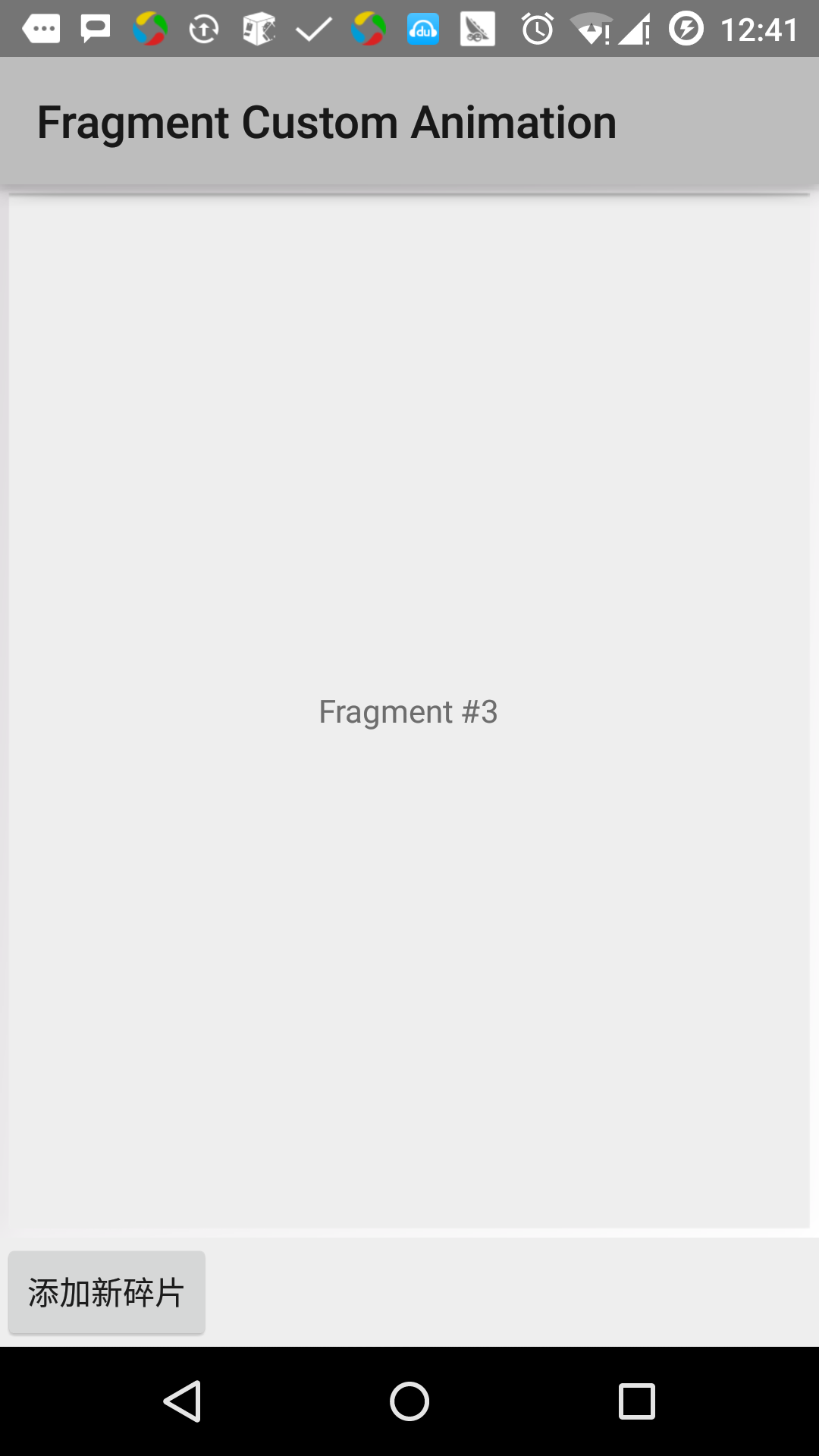
Let’s run the Fragment Custom Animation application that we just modified. I assume that you have created AVD when you installed the environment. Open the active file in your project and click the icon in the toolbar to run the application in Android Studio. Android Studio installs the application on AVD and starts it. If all goes well, it will be displayed on the simulator window as follows: